
The next procedure will create a new Matcher5 database from a client's first time installation on a PC:
- Install Matcher5 client on the PC
- Run Matcher5 as "Administrator"
- Ctrl + Click on the settings (cog) button in the upper left corner
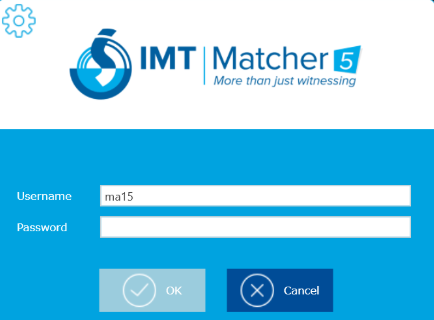
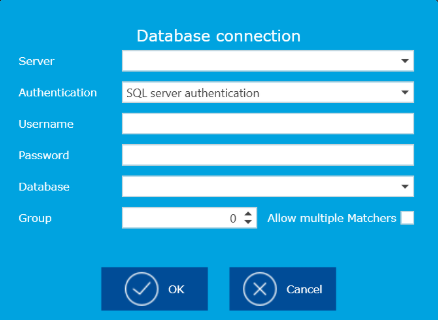
- Type Server DB path as "server_name\SQL_server_name"
- Choose SQL authentication for the first time installation and add SQL user name, password and DB name.
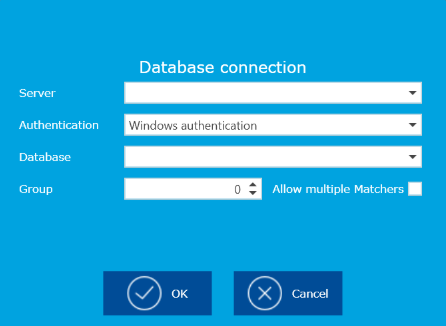
- After a first time access to the SQL Server you could change the authentication method by "Windows authentication" for computers within a Windows domain or with local DBs.
- Once server settings were added, click OK and tick every options excluding "Process maps and procedures" and "Cycles templates".
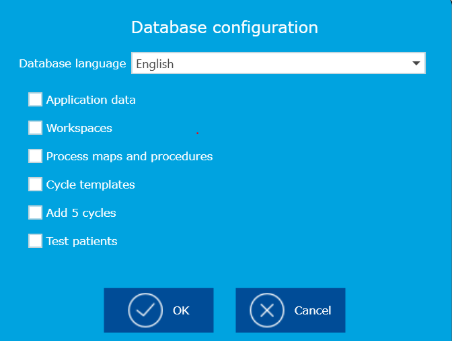
- Then click OK to start the DB creation process.
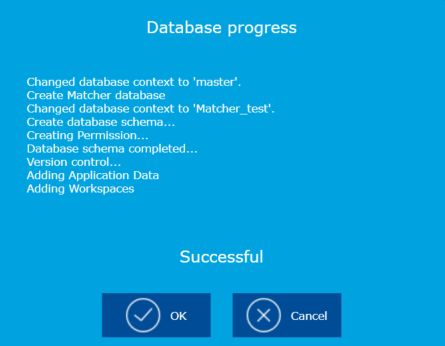
- Click OK and Type a "location" name in the next page then click OK.
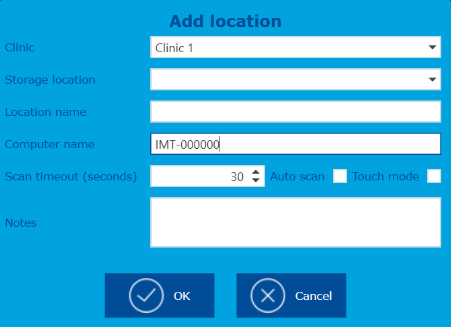
Then Matcher5 will run as new client within the defined database.
Comments
0 comments
Article is closed for comments.