
This article will show you how to restart the Matcher API in Windows platform:
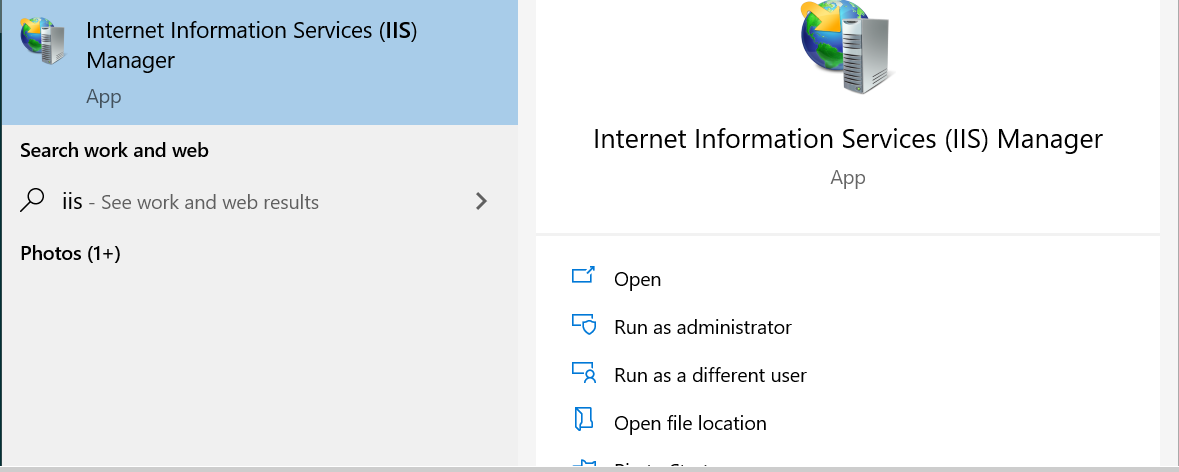
.- Go to IIS Management console in Windows:
.- Click and expand the 'Sites' folder and right click on the 'Default Web Site' icon:
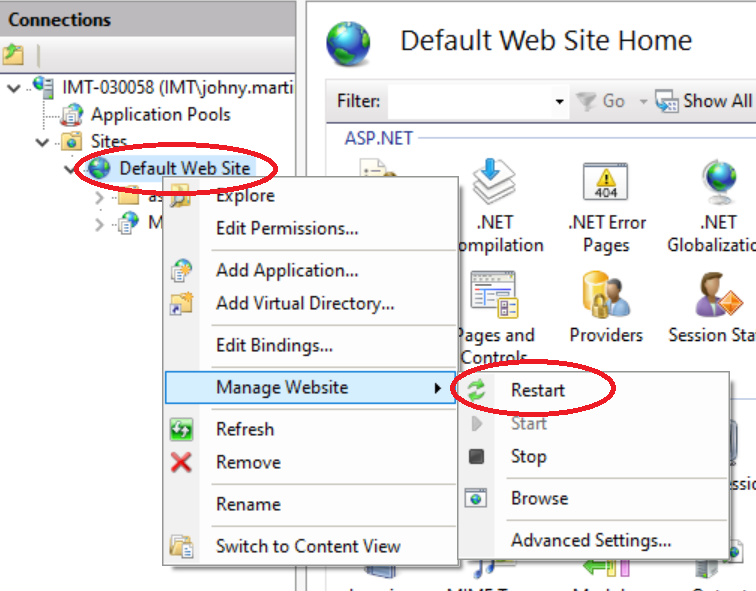
.- Go to 'Manage Website' option and click on 'Restart'.
To confirm API functionality:
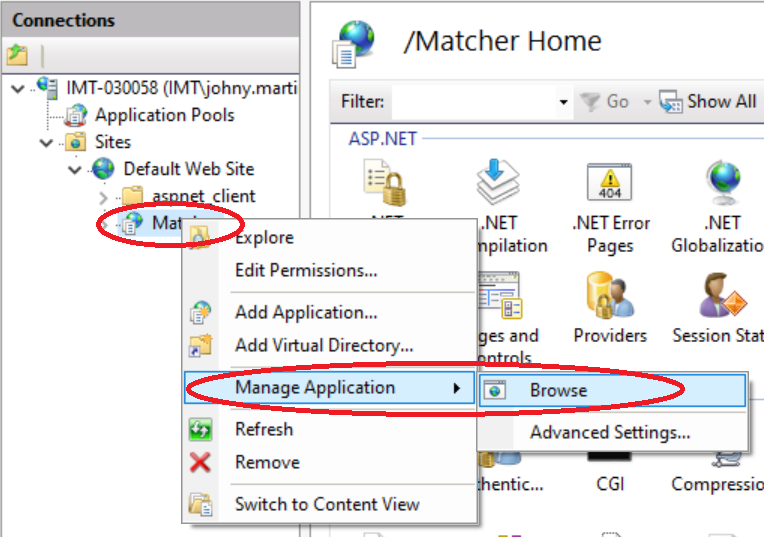
.- Right click on the 'Default Web Site' icon again, select 'Matcher' icon, go to 'Manage Application' option and click on 'Browse':
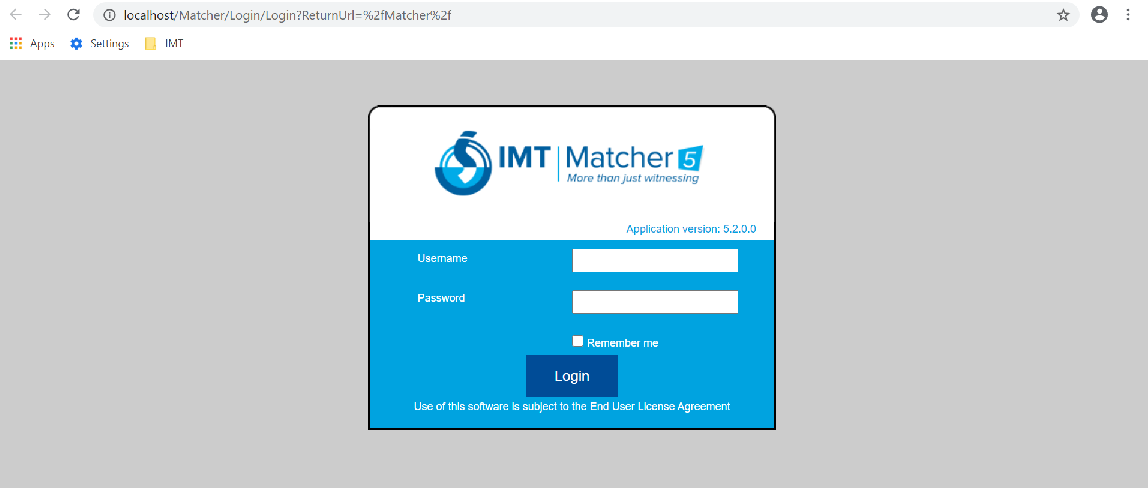
.- This will open a new browser windows where a login screen will appears. This confirms API was restarted successfully :
Comments
0 comments
Please sign in to leave a comment.