
This article will explain how to enable the TeamViewer capability within Matcher5 application.
1- Open the user drop-down menu and go to the options shown in the next image:
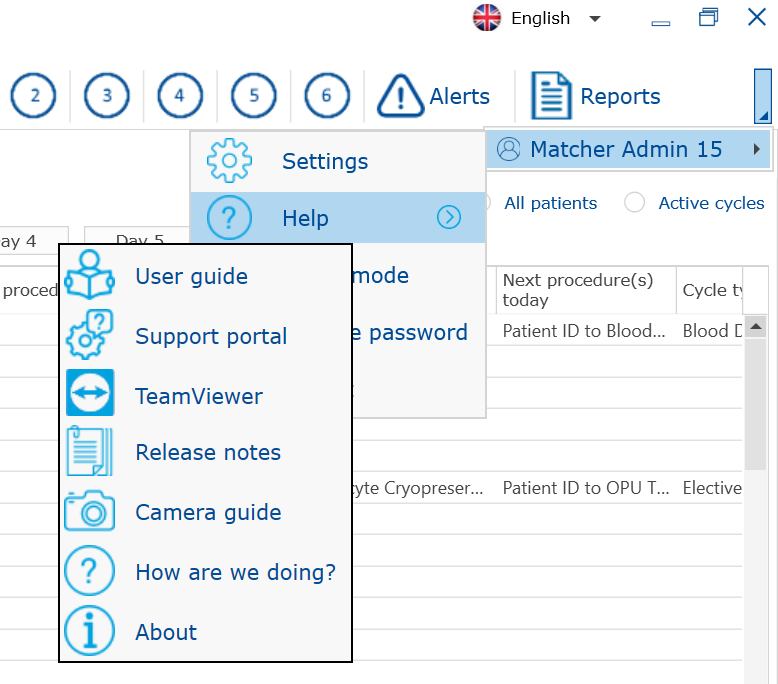
2- Select "TeamViewer" and a browser windows will open and will download a thin version of TeamViewer as follow:
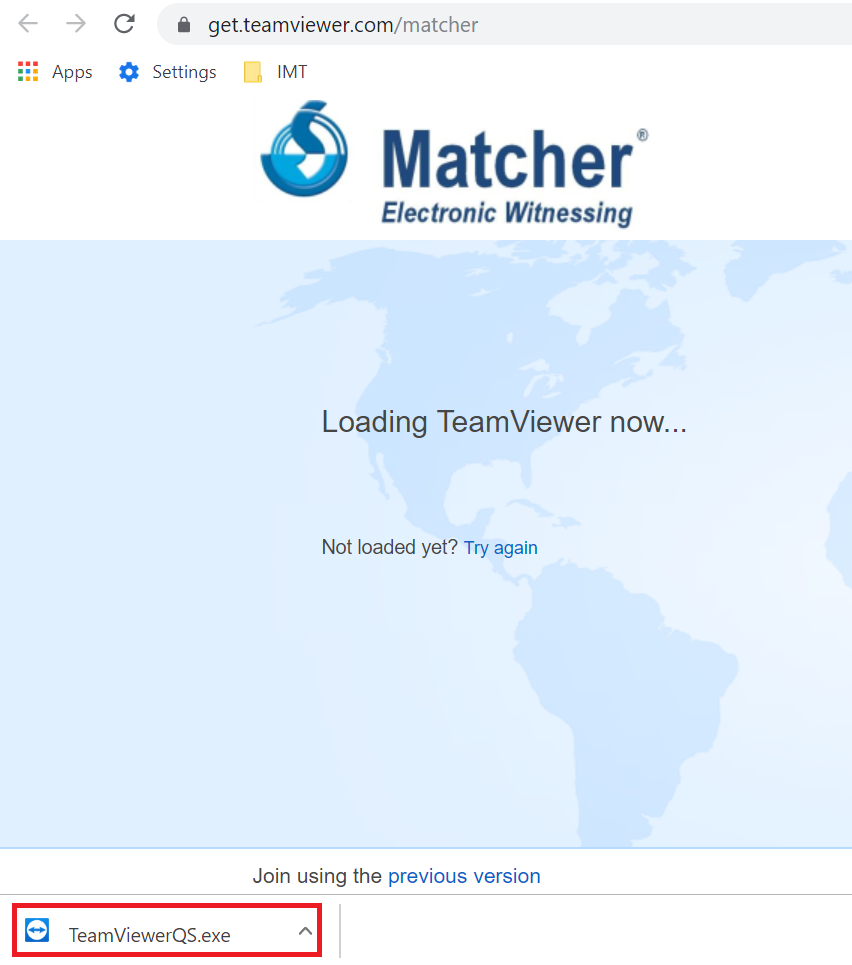
3- Click on the "TeanViewerQS.exe" icon and run the program and the following screen will appear in your desktop:
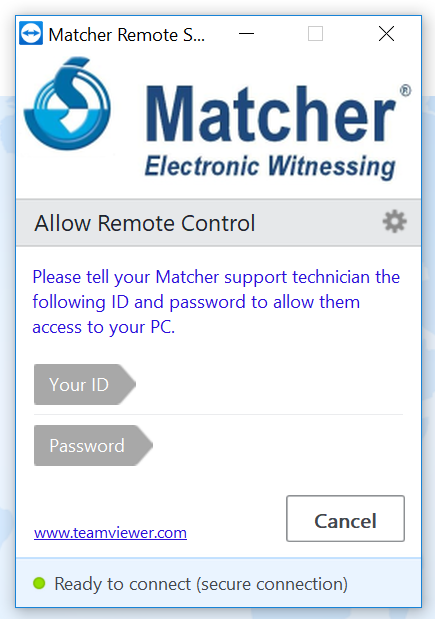
4- An ID and Password will be displayed next to the gray arrow fields "Your ID" and "Password", give those credentials to the Matcher support staff to enable them to connect to your PC.
Comments
0 comments
Article is closed for comments.