
This article will guide you to configure SQL Port and service to allow Matcher to browse and connect to the Matcher database.
1- Open SQL Server configuration manager on the PC or Server where the SQL Engine is running, then click on the options shown on the following image:
| Version | Path |
|---|---|
| SQL Server 2019 | C:\Windows\SysWOW64\SQLServerManager15.msc |
| SQL Server 2017 | C:\Windows\SysWOW64\SQLServerManager14.msc |
| SQL Server 2016 | C:\Windows\SysWOW64\SQLServerManager13.msc |
| SQL Server 2014 (12.x) | C:\Windows\SysWOW64\SQLServerManager12.msc |
| SQL Server 2012 (11.x) | C:\Windows\SysWOW64\SQLServerManager11.msc |

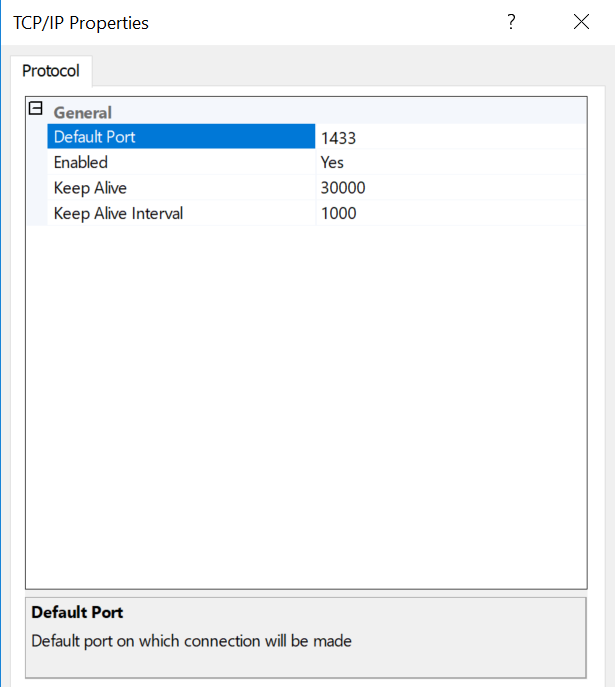
2.- Double click on TCP/IP and set the "Default port" to 1433 and enable the protocol by selecting "Yes", then click OK to save changes.
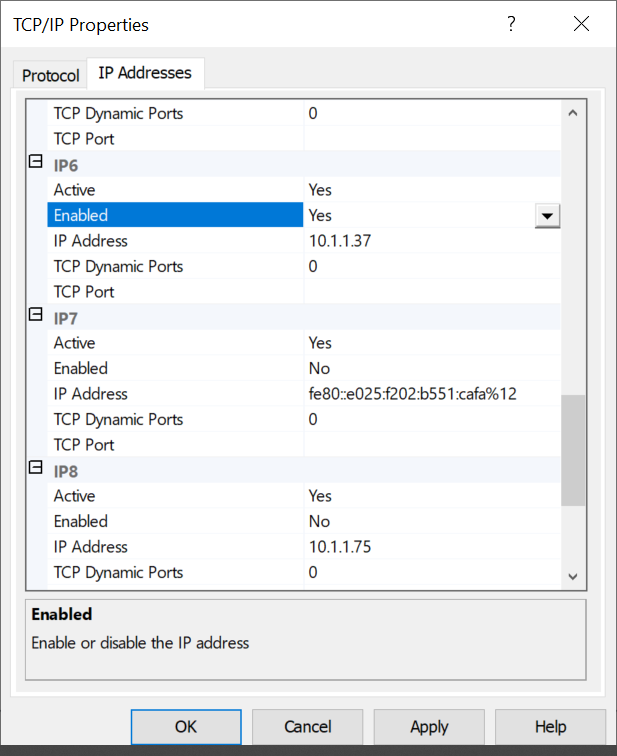
3- Open also SQL Server Network Configuration, on protocols for the instance ( in this case SQLEXPRESS) find the TCP/IP and enable it. Double click on it , open the IP Address and find the entry with the ip address of the machine and enable it too.
4- Restart SQL Service
5- Go to "Services" within "Administrative tools" and look for "SQL Server Browser" service.
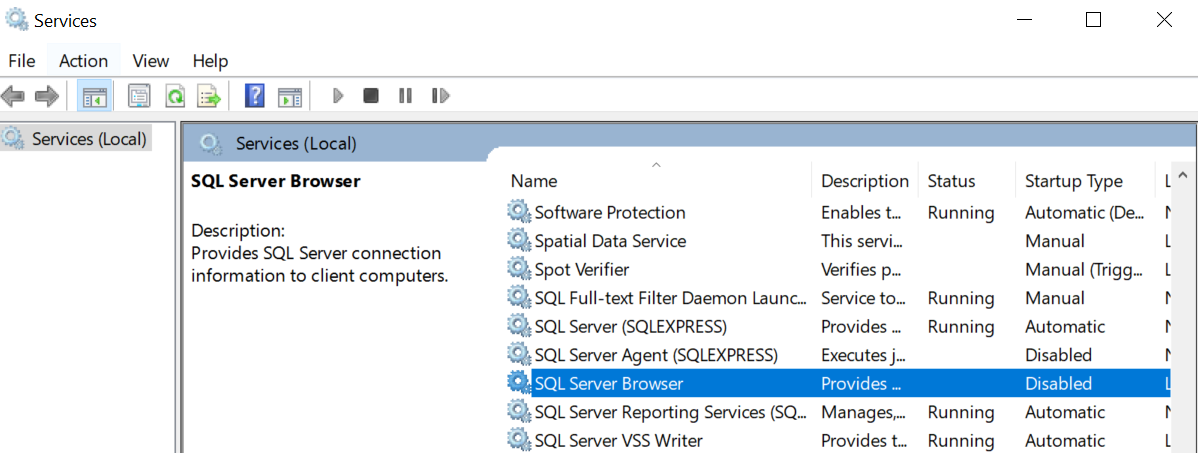
6- Open the service page and set the "Startup type" as Automatic, apply changes and start the service to allow the SQL Server to be discovered through the network. Once the client(s) were configured, the service could be stopped and set as "Disabled".
Comments
0 comments
Article is closed for comments.