
This article will explain how to link an existing Matcher user to a Windows account and enable the access to database by Windows authentication using the Matcher client.
To enable this, sign-in to Matcher and open the drop-down user menu:
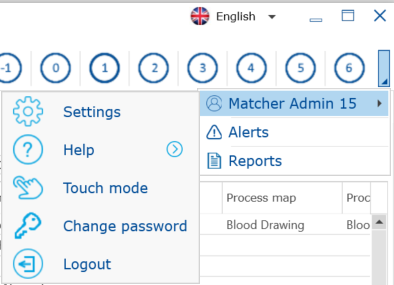
Go to "Setting" and open "Users" option.
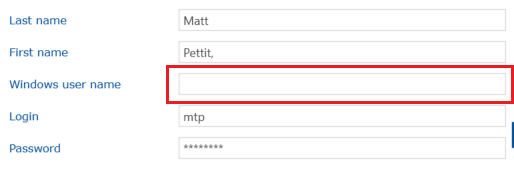
Once selected the desired user to be linked to a Windows account, Click on  button and type on the "Windows user name" field, the Windows username defined in the Active Directory.
Click on "Save" button close the settings menu.
Comments
0 comments
Article is closed for comments.