
HFS - HTTP File Server to host Pocket Matcher upgrade files.
A more efficient way of upgrading the Pocket Matcher software can be to scan a barcode that initiates the download of the Matcher .CAB file from a HTTP file share. This guide will demonstrate the software download from a HFS HTTP File Server.
N.B. The share which contains the download file can be located on either an external web site or on a Local Domain based HTTP web server (e.g. HFS HTTP File Server or IIS).
Prior to commencing the software upgrade, it will need to be decided whether to run HFS from a Server or a PC client. This is because HFS runs from a temp folder, and does not install on the host machine.
You can download the HFS client form http://www.rejetto.com/hfs/ or extract the hfs.zip file to the desktop (or suitable location) from the One Drive for Business link sent to you by Matcher support.
| 1 Download the HFS client form http://www.rejetto.com/hfs/ or extract the hfs.zip file to the desktop (or suitable location) from the One Drive for Business link sent to you by Matcher support | 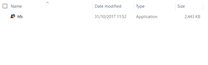 |
| 2 Allow the application to pass through the firewall (if applicable) | 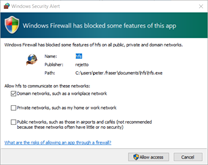 |
| 3 The User interface opens (if you do not see the UI it may have minimised to the notification area). | 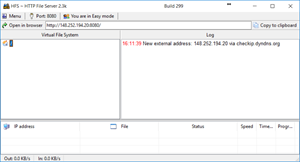 |
| 4 To add the files that you require, simply drag and drop into the “virtual file system” window. | 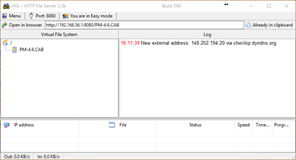 |
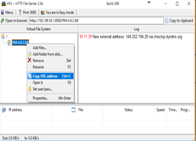
| 5 Now the file server is ready we can create the barcode to distribute. • Right click on the file .CAB file you added. • Select ‘Copy URL address’ |
 |
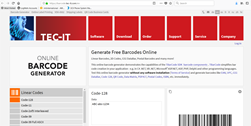
| 6 Open a web browser and navigate to: https://barcode.tec-it.com/en |
 |
|
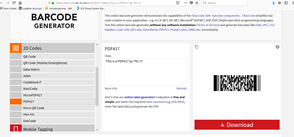
7 • At the left hand pane scroll down too 2D Codes, click to expand. Follow the guide from the Matcher Portal, using the new barcode you have created. https://matchersupport.zendesk.com/hc/en-us/articles/115002276773-Upgrade-a-Pocket-Matcher-4-6 |
 |
Comments
0 comments
Article is closed for comments.