
To plug in an Andro Matcher Benchtop device please follow insturctions here:
When plugged in follow these steps to manually configure the Andro Benchtop Matcher device to the system:
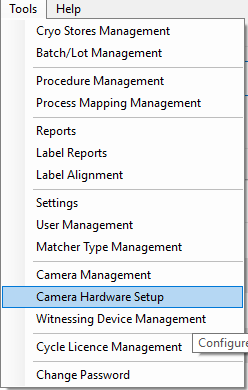
Logon to the Matcher application, select 'Tools' from the main menu at the top of the page, and then select 'Camera Hardware Setup'.
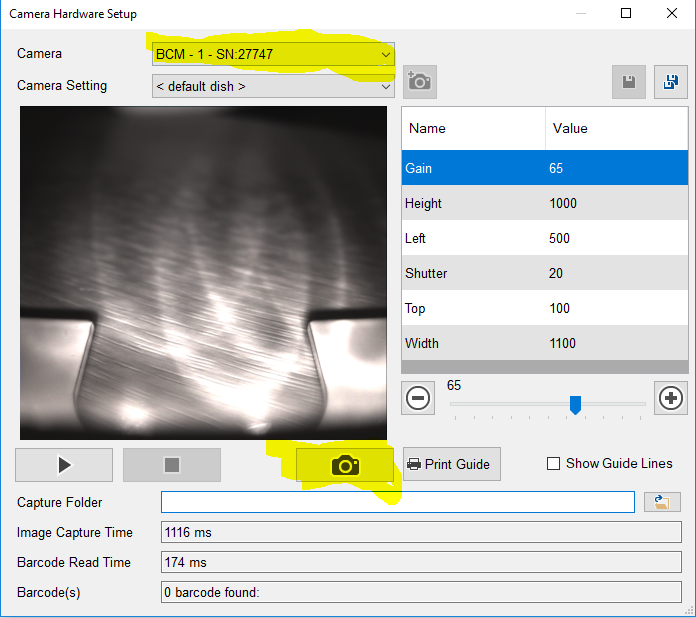
In the Camera Hardware Settings pop up window make sure camera 1 is selected from the 'Camera' drop down menu, then select the camera button at the bottom of the window so you can identify from the photo it captures whether that camera is for the 'left dish', 'right dish' or is the 'tube' camera.
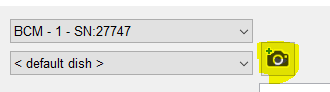
When identified, select the 'add camera' button.
 S
S
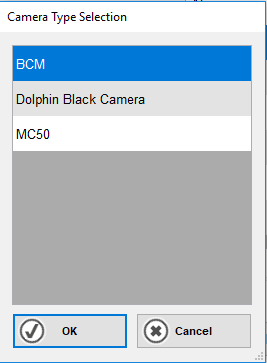
Select 'BCM' from the menu, then click 'OK'.
If it is a 'left tube' or 'right tube' camera, select '< default tube >' in the Camera Setting, and then select the button on the far right to 'Create a copy of these settings'
***Important if SPRM POT Select Dish"***

If it is a 'sperm pot' camera, select '< default dish >' in the Camera Setting, and then select the button on the far right to 'Create a copy of these settings'. This is because the orientation of the barcode on the label for sperm containers is horizontal like a dish, not vertical like on tubes.

Then in the next pop up window, in the Name field use the following naming convention:
- If Left Tube: Name 'LT1', Mode Type 'Tube'
- If Right Tube: Name 'RT1', Mode Type 'Tube'
- If Sperm Pot: Name 'SP1', Mode Type 'Dish'
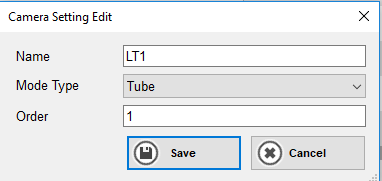
Select 'Save'
Then select 'Create a copy of these settings' again, to create a second set of settings which allows the cameras to adjust for different lighting and barcode conditions.
Then in the next pop up window, in the Name field use the following naming convention:
- If Left Tube: Name 'LT2', Mode Type 'Tube'
- If Right Tube: Name 'RT2', Mode Type 'Tube'
- If Sperm Pot: Name 'SP2', Mode Type 'Dish'
Select 'Save'.
Then in the Camera setting select camera setting 2 for example "LT2". Select the 'Gain' setting on the left side and set it to '35', then select 'Save' as shown below.
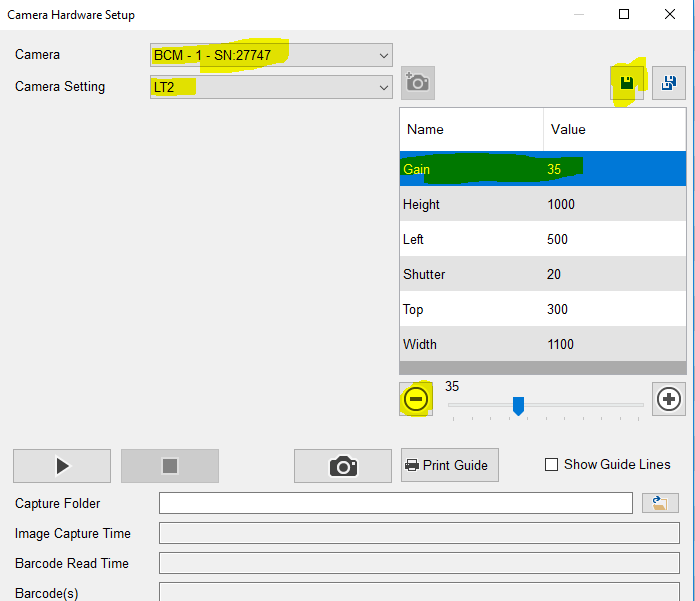
Repeat this step for the other two cameras.
***IMPORTANT WHEN CONFIGURING SPERM POT CAMERAS MAKE SURE THE 'TOP' SETTING IS '100', BUT FOR TUBE CAMERAS SET THE 'TOP' AT '100'***
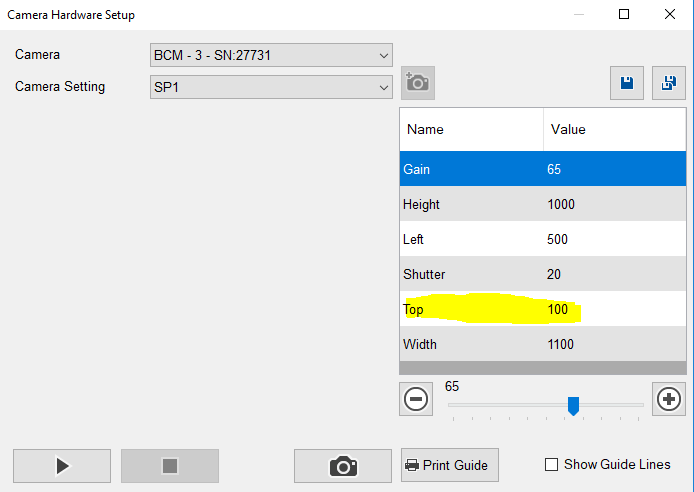
Where all three cameras have had their settings added make a note of the camera serial numbers and which number corresponds to which camera type (left dish, right dish or tube).
For example:
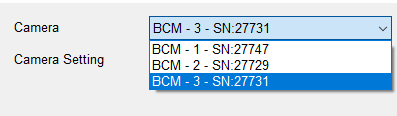
- BCM - 1 - SN27747 = Left Tube Camera
- BCM - 2 - SN27729 = Right Tube Camera
- BCM - 3 - SN27731 = Sperm Pot Camera
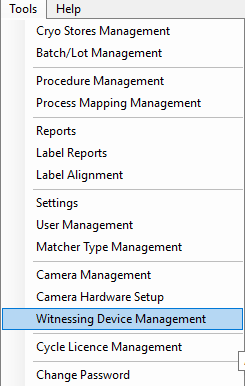
Then within the main menu, navigate to 'Tools' then 'Witnessing Device Management'.
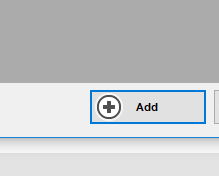
On the next window select 'Add'
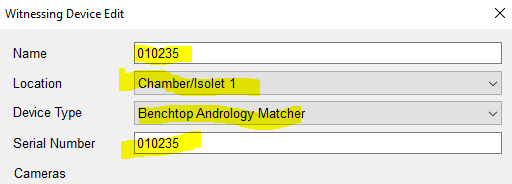
Then in the next pop up window enter the Asset Tag number (located on a silver label on the bottom of each Benchtop Matcher device) into the Name and Serial Number fields. Select 'Device Type' as either 'Benchtop Andrology Matcher' or 'Benchtop IVF Matcher' as appropriate. And select the Location where the device is being positioned.
Then select 'Add', select the Camera serial number from the first drop down list, select the 'Position' of camera you noted earlier, and finally set the 'Orientation' to 'Down', then select 'Save'.
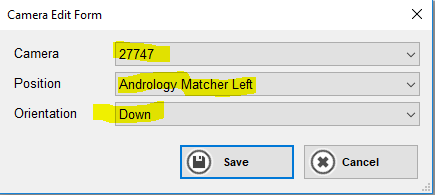
Repeat for other two cameras as shown below.
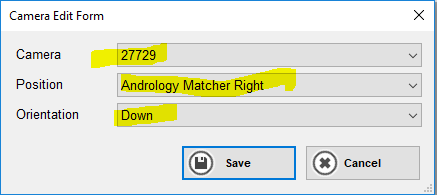
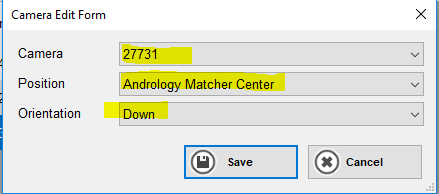
When all three cameras have been added, select 'Save'.
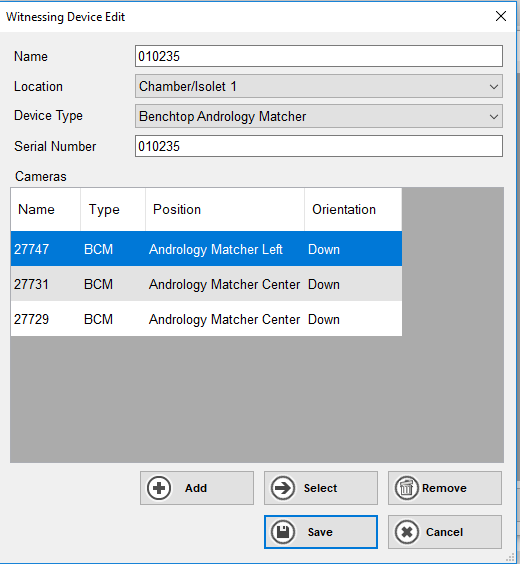
The Benchtop Matcher device has now been successfully added to the system ready for witnessing.
Comments
0 comments
Article is closed for comments.