
Changing Matcher Software Server Settings -Pocket Matcher
|
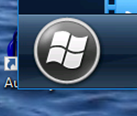
From the desktop, press the Windows Icon in the bottom left hand corner:
|
 |
|
Select the Matcher Icon to load the software:
|
 |
|
When the Matcher software has loaded up, press the gear icon in the top right hand corner:
|
 |
|
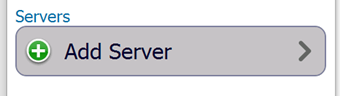
Click on ‘Add Server’
|
 |
|
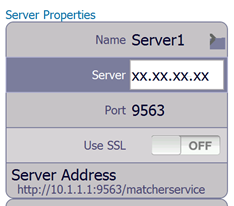
You will now need to enter the details of the server that you are connecting to.
Name: Server Name Server: Server IP Address Port: This is always ‘9563’
Once you have inputted the details, press ‘Done’, and you should see the server details entered into the server list. |
 |
|
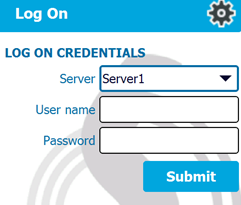
Press ‘Done’ again to return to the initial Matcher Logon screen. It should now present you with the Matcher server name in the Server box:
The background colour of the server box gives an indication of whether the handheld can connect to the database: YELLOW BACKGROUND =No Connection -The Matcher Service will usually need to be started PURPLE BACKGROUND =No Connection -Check the server details and that Wifi is connected BLUE BACKGROUND =Valid Connection -You should be able to log into Matcher |
 |
Comments
0 comments
Article is closed for comments.