
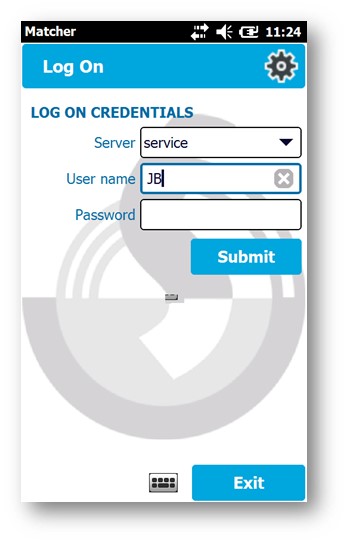
- Logon using your user name and password
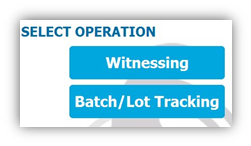
- Select operation ‘Witnessing’
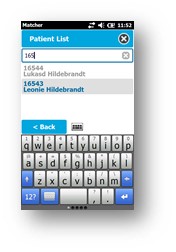
- The patient list will be displayed
- Search for and select the patient you wish to work with
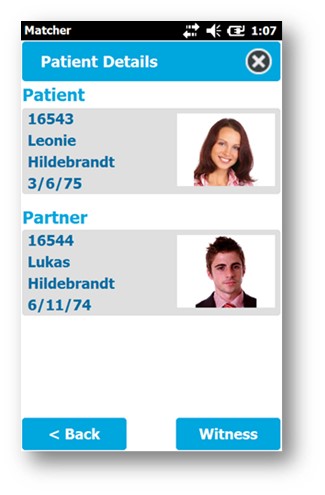
- Select ‘Witness >’
- If the patient already has an active process map, the active process map(s) will be displayed. Select the one you require, or you may need to 'Start a New Process Map' if the one you need is not displayed
- The list of procedures within the process map will be displayed, with the next expected procedure text highlighted in blue
- Select the procedure, then select the ‘Witness >’ button
- The screen will indicate how many items it is expecting to read
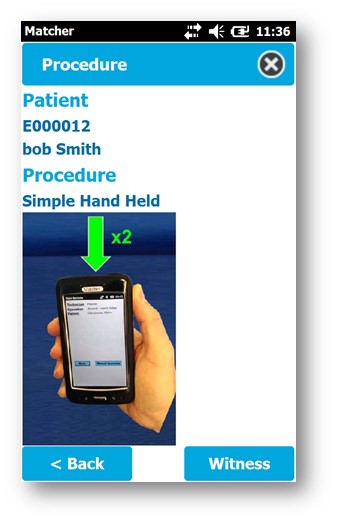
- Select 'Witness'
- The ‘Scan Item’ page will be displayed showing that you now need to scan the barcode(s)
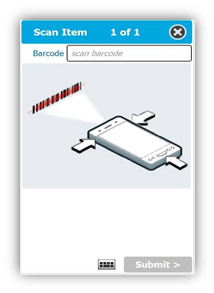
- Point the top end of the Pocket Matcher at the barcode
- Press down hard on the silver scan button on the front of the device (at the bottom) until the red aiming light is visible. Alternatively you can press either of the orange buttons on the sides (at the top) of the Pocket Matcher, where the user's thumb is pressing in the photo above
- Aim the red aiming light at the centre of the barcode you are trying to read
- Keep pressing the button until the light flashes once and the device makes a 'beep' sound. This indicates that the barcode has been read successfully, and that a photo of the barcode label has been captured
- The captured photo will be displayed on the screen
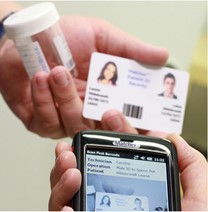
- Select ‘Accept’ if there are more items to scan, or select ‘Submit’ if this was the last scan in the procedure
- If there are more items to be scanned, now aim the Pocket Matcher device at the barcode on the next item and press the scan button again, and repeat steps until all items have been scanned and accepted
- When the final container has been scanned, select ‘Submit’
- If the barcodes match you will see the green ‘Match confirmed’ result
- If the barcodes don’t match you will see the red flashing ‘No Match’ result, and you will be asked to select a 'Reason for the No Match'
- You can also ‘Add notes’ if required, or add these at any later time from a tablet/PC
- You now have the choice to either ‘Repeat' the procedure, to ‘Log Off’, or to select the round 'X' button in the top right corner, which will keep you logged on but exit this patient back to the home screen

- Alternatively, if you do nothing the green time-out bar at the bottom of the screen will get shorter until it automatically logs you off (default setting is usually after 3 minutes), so that your colleagues don't witness under your name even if you forget to log off
- Matcher remembers the last procedure witnessed for each patient, so that when a user next logs on to the same patient the next procedure will have been updated
Comments
0 comments
Article is closed for comments.