
Procedures and Process Maps are configured in specific sequences within Matcher by your system administrator to replicate your witnessing standard operating procedures. You can perform procedures out of the specified order, but you will need to specify why you are ‘overriding’ the specified sequence. This is then recorded in Matcher.
- After logon select 'Witnessing'
- The patient list will be displayed
- Search for and select the patient you want to work with
- Select ‘Witness >’ on the Patient Details screen
- From within ‘Active Process Maps’ select the ‘Process Map’ you want to work within, or start a new process map if required
- The next expected procedure will be indicated with a green arrow on the left of the procedure name

- (Note that procedures may involve more than one choice of alternative 'route' if the orange split arrow icon is also indicated on the procedure)

- If you want to perform a different procedure out of sequence within the map, you can select it instead of the expected next procedure, but the application will ask you for a reason for the override from a drop down menu configured by your administrator
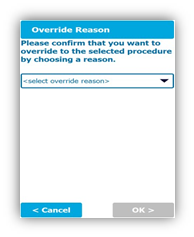
- Select a reason from the drop down menu
- Select the ‘OK >’ button
- You will now be able to perform the new procedure you have selected
- The override event and the reason will have been logged in the ‘Override Report’ for traceability purposes
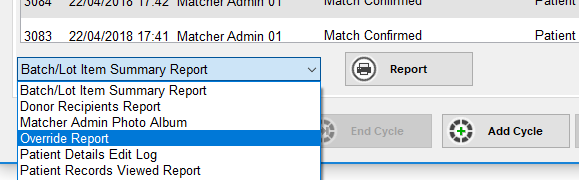
- The override report for the selected patient is available from any tablet/PC running the Matcher application, and is located within the Matches tab of their patient details in the reports drop down list
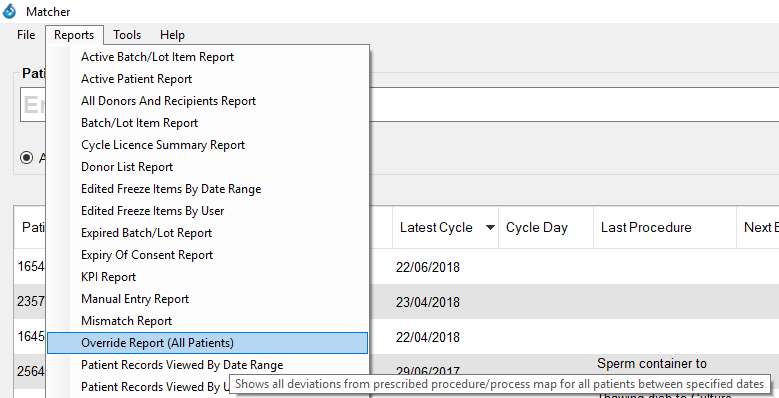
- The override report for all patients between specified dates is available from any tablet/PC running the Matcher application, and is located within the Reports option in the main menu at the top of the screen
Comments
0 comments
Article is closed for comments.